Moom 4
Moom 4 is a powerful window manager designed for macOS, allowing you to easily resize, reposition, and arrange windows. Through floating controls, mouse shortcuts, edge-dragging for split-screen, and keyboard shortcuts, it enables one-click management of multiple windows and supports creating and saving custom layouts. It enhances daily office work, development, and study efficiency, integrates seamlessly with macOS, and offers intuitive operation. Provides permanent activation with 1 year of free updates, making it an essential productivity tool for Mac users.
Prices and billing cycles may contain errors. Please refer to the seller page.
You will be redirected to a third-party platform for transaction.
Moom 4 is a powerful window management tool for the macOS platform, dedicated to simplifying multi-window operations and significantly enhancing work efficiency and user experience. It offers various innovative modes, allowing users to precisely adjust window size, position, and layout without complex operations, completely eliminating the hassle of manual dragging. Its core highlights lie in its intuitive operation methods and high degree of customizability. Whether you are engaged in daily office work, programming development, or academic research, you can quickly adapt to the needs of different scenarios.
Detailed Introduction of Core Features:
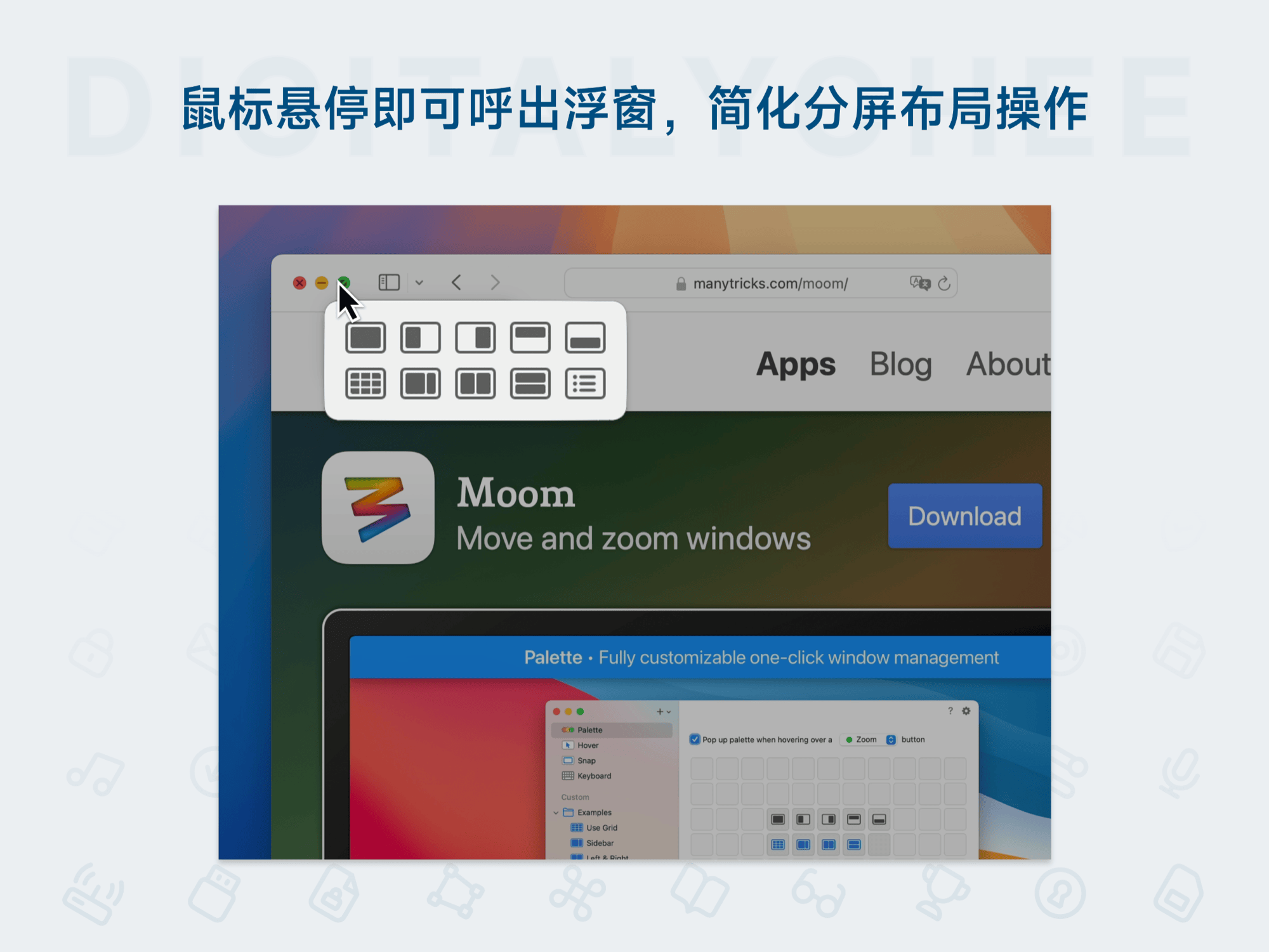
- Floating Window Adjustment Layout: Simply hover the mouse over a window's action button to bring up the intelligent floating panel. By clicking on preset grid or proportion options (such as 1/2 screen, 1/4 screen), you can split and position windows with one click, eliminating the need for precise mouse movement, making operations efficient and accurate.
- Mouse Quick Scaling: Hold down a modifier key (like Option or Command) and move the mouse to dynamically scale the window size. It automatically calculates the optimal proportions, avoiding repeated adjustments and significantly reducing operation time, especially suitable for quickly switching window sizes.
- Edge Drag for Split Screen: Drag a window to the edge or corner of the screen, and the system automatically recognizes it and provides standard layout options like full-screen, half-screen, or quarter-screen. It supports managing up to 4 windows simultaneously, enabling parallel multi-tasking and improving collaboration efficiency.
- Keyboard Shortcut Operations: Use custom keyboard shortcuts (e.g., ⌘+F4) to bring up the control panel. Combined with arrow keys or number keys, you can quickly move, scale, or arrange windows, avoiding frequent mouse use and speeding up the workflow.
- Save Layout Schemes: In the sidebar folder, you can create, edit, and save up to 99 custom layout schemes, such as "Development Mode" (displaying documents, editor, and debugger) or "Study Mode" (split-screen video and notes). Restore complex work environments with one click, saving time on repeated configuration.
- Advanced Features: Supports customizing floating panel options (like position, button icons), creating action chains (combining multiple operations into a one-click trigger sequence), and importing/exporting layout files to meet the personalized needs of professional users.
Applicable Scenarios and Value:
- Daily Office Scenarios: Allocate dedicated layout schemes for commonly used software like email clients, document editors, and browsers. Customize floating buttons for quick switching and management, eliminating the need to frequently switch between multiple windows, thereby improving efficiency in handling emails and writing reports.
- Developer Scenarios: Enable a preset "Development Layout" with one click, simultaneously displaying API documentation, code editors (like VS Code), and debug consoles side-by-side. Focus on coding and testing without distractions, accelerating the project development cycle.
- Learning Scenarios: When watching online courses, split the screen to display the video window, note-taking tools (like OneNote), and reference materials (like PDF readers), ensuring learning materials are visible simultaneously, enhancing information absorption efficiency, especially suitable for online courses and self-study.
- Advanced Management Scenarios: Use the "Action Chain" feature to compile complex multi-step operations (like window adjustments, application launches) into a single-key trigger, simplifying repetitive tasks. For example, create custom workflows for meeting preparation or data processing to meet the needs of advanced users.
Activation and Usage Instructions: After purchase, the license file is automatically sent to your email. Run the Moom application, click the menu bar option "Moom > Buy Moom…", and drag the license file into the popped-up activation window to complete permanent activation. The software supports activation on 5 devices, offers 1 year of free updates and 200 pre-purchase trials, allowing users to fully test the features before deciding to purchase.
Moom 4 is not just a window management tool; it's an optimizer for the macOS experience. It transforms cumbersome window operations into efficient, intuitive processes, keeping your desktop organized and your work more focused. Whether for ordinary users looking to improve daily efficiency or professionals optimizing workflows, Moom 4 is an indispensable Mac productivity partner, helping you navigate multi-tasking environments with ease.
Product information is for reference only. Please refer to the purchase page.